ROS Legacy for PC – System Requirements and Installation
ROS Legacy has a separate Windows version for players who prefer playing on a computer instead of an Android phone. The PC release is distributed as a ZIP archive, which needs to be downloaded and extracted before following the available setup instructions.
Before installing the game, check your computer’s available storage, Windows compatibility, and hardware specifications. This article explains the PC installation process and some common problems that may occur during setup.
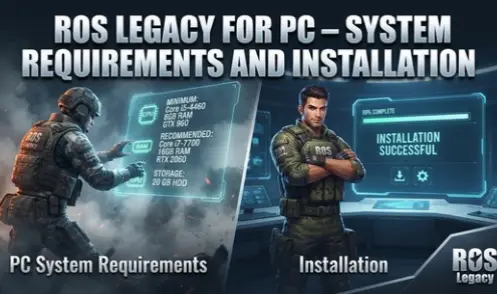
What Is ROS Legacy for PC?
ROS Legacy for PC is the Windows version of the fan-made revival of Rules of Survival. It allows players to experience the battle royale gameplay on a desktop or laptop computer.
Unlike the Android release, the Windows version comes as a separate archive. Players need to download the PC files, extract them, and follow the installation instructions provided with the release.
The game is currently in Open Beta, so some features and technical requirements may change as development continues.
ROS Legacy PC System Requirements
Before downloading the Windows version, check whether your computer has enough available storage and suitable hardware.
The official minimum processor, RAM, and graphics requirements should be checked against the latest PC release information. Avoid relying on unverified hardware specifications.
How Much Storage Does ROS Legacy Need on PC?
The Windows archive is approximately 8.25 GB. However, the extracted game files may require additional disk space.
Before downloading, make sure your computer has enough free storage for both the ZIP archive and the extracted folder. Keeping some extra space available can also help prevent extraction errors.
How to Download ROS Legacy for PC
The Windows version is available through the project’s PC download option.
Follow these steps:
- Open the ROS Legacy download page.
- Find the Windows or PC download section.
- Select the available Windows version.
- Start downloading the ZIP archive.
- Wait until the complete file has been saved.
- Check the downloaded file before extracting it.
The archive is approximately 8.25 GB, so download time will depend on your internet speed.
How to Install ROS Legacy on Windows PC
After downloading the archive, extract its contents and follow the setup instructions included with the release.
Step 1: Locate the Downloaded ZIP File
Open the folder where your browser saves downloaded files. Find the ROS Legacy Windows ZIP archive.
Check its file size and make sure the download has completed successfully.
Step 2: Extract the ZIP Archive
Right-click the downloaded archive and select the extraction option available on your computer.
You can use Windows’ built-in extraction feature or a suitable archive extraction application.
Wait for the extraction process to finish. Avoid interrupting it while the files are being unpacked.
Step 3: Open the Extracted Folder
Navigate to the folder created after extraction.
Look for the included setup instructions or launcher file. Follow the instructions provided with the current PC release rather than opening random files.
Step 4: Complete the Setup Process
If the release includes an installer, follow the instructions displayed on the screen.
If it uses a portable folder or launcher, follow the developer’s provided steps to start the game.
The exact setup process may differ between Open Beta builds.
Step 5: Launch the Game
After completing the setup, open the game using the provided launcher or shortcut.
Wait for the game to load and proceed to the account login screen.
Step 6: Sign In to Your Account
Enter your Mirae Labs account details on the login screen.
If you do not have an account, complete the registration process through the official account page before attempting to sign in.
Tips for Better PC Compatibility
The actual gameplay experience depends on your computer’s hardware and software configuration. These basic checks may help avoid some common performance problems.
- Keep sufficient free storage on your Windows drive.
- Close unnecessary applications before launching the game.
- Install available Windows updates.
- Keep your graphics drivers updated.
- Avoid extracting the archive while other heavy applications are running.
- Check the official release information for compatibility updates.
If the game runs slowly, check your system resource usage and close applications that are consuming too much memory or processor capacity.
ROS Legacy PC Not Installing or Opening? Common Fixes
Some players may encounter errors while extracting or launching the Windows version.
ZIP File Not Extracting
If the archive fails to extract, check whether the download is complete. A damaged or incomplete ZIP file may cause extraction errors.
Download the archive again if necessary and make sure sufficient disk space is available.
Game Not Launching
If the game does not open after extraction, check the included setup instructions and make sure all required files are present.
Restart Windows and try launching the game again. If an error message appears, note its details before attempting additional changes.
Not Enough Disk Space
The archive itself is approximately 8.25 GB, and extraction requires additional space.
Remove unnecessary files or choose another drive with enough available storage before trying again.
Game Running Slowly
Performance issues may be related to limited hardware resources, background applications, or graphics settings.
Close unnecessary programs and check whether your computer meets the requirements listed for the current release.
Frequently Asked Questions
Final Words
The Windows version of ROS Legacy provides a separate option for players who prefer using a desktop or laptop. Its ZIP-based distribution requires downloading and extracting the archive before following the available setup instructions.
Before starting, check your available storage and Windows compatibility. Also, review the instructions included with the current Open Beta release because installation steps and system requirements may change with future updates.